
How Can We Help?
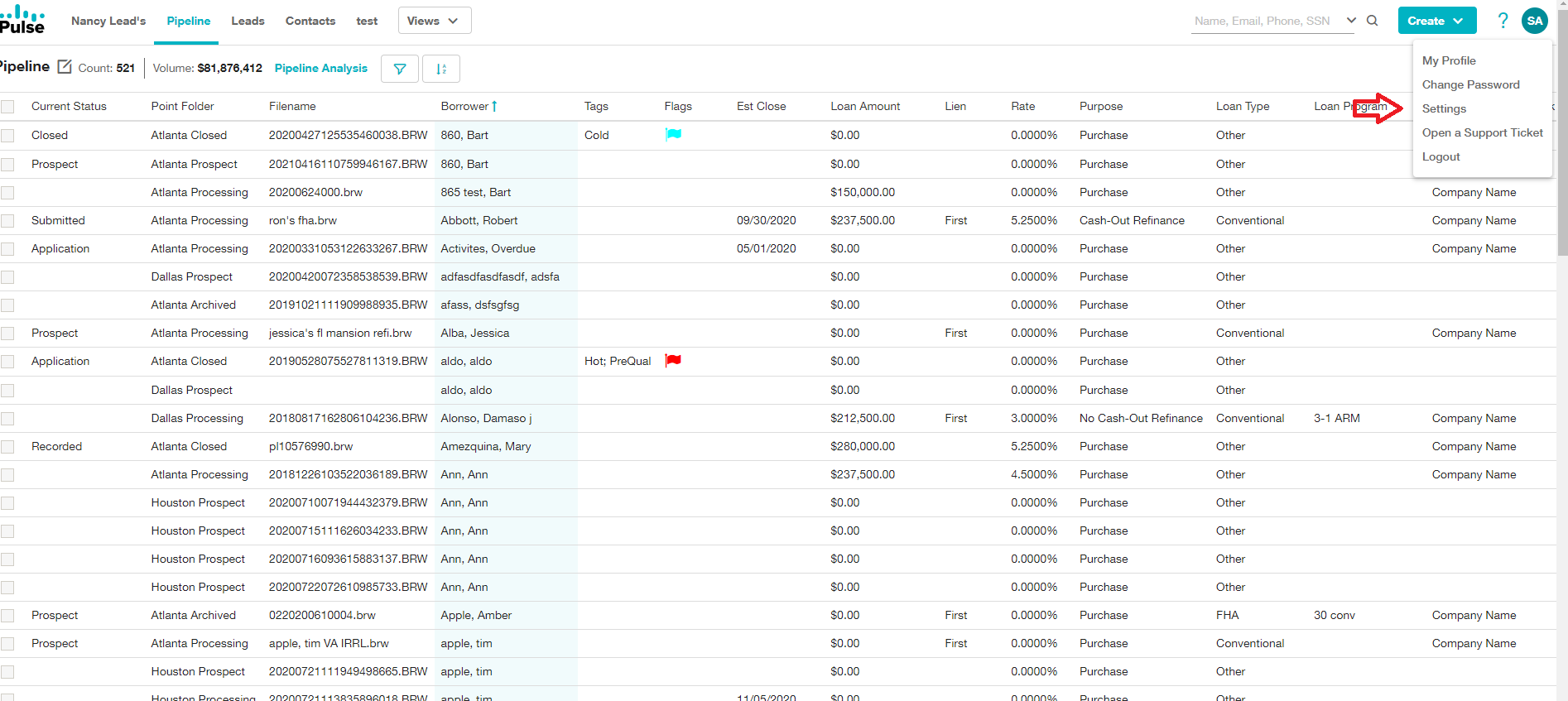
Looking to add a new user to Pulse? First, sign into your PulseCRM Admin account, and from the main page select the round button with initials in the top right corner, and then select settings from the dropdown.
After this, on the left you’ll see a button that says “Users”, go ahead and select this.

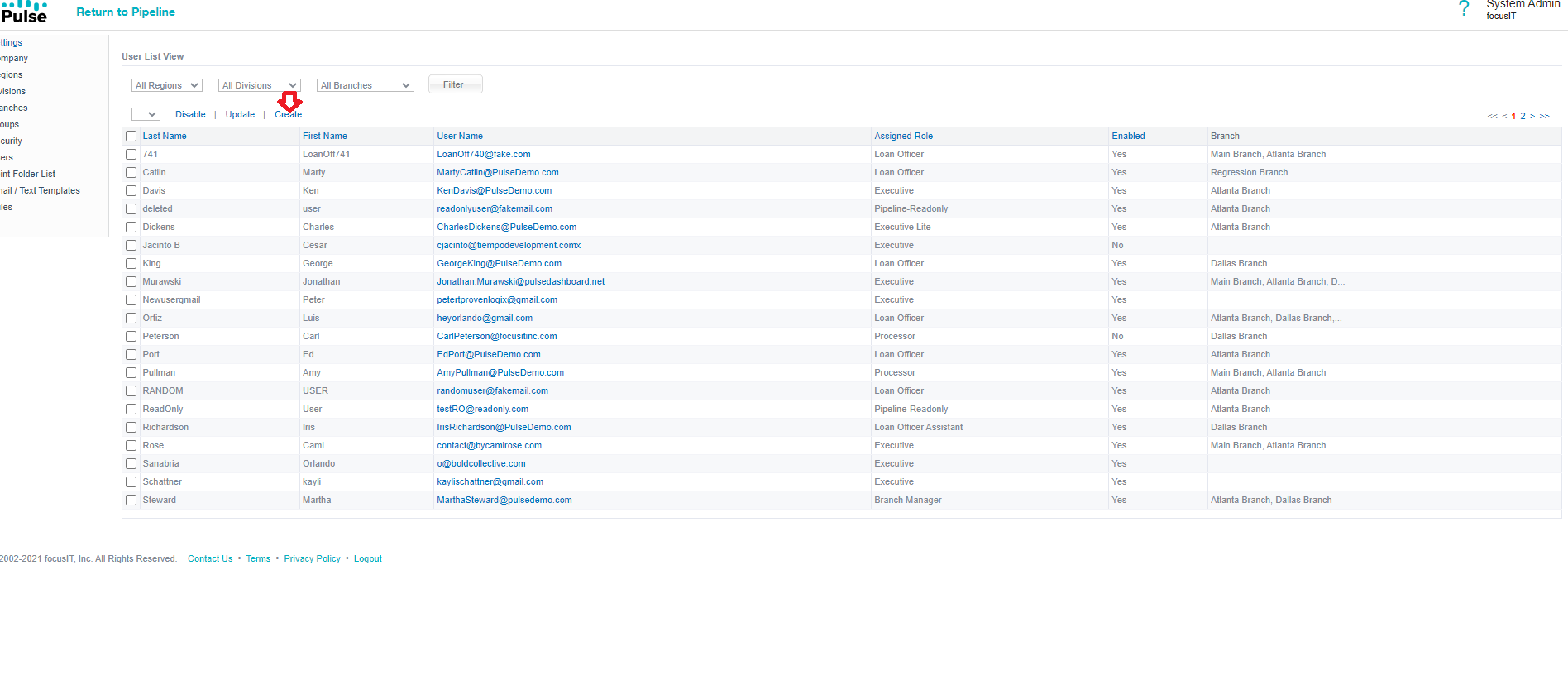
Once you’re on the users page just beneath the dropdown lists, you’ll see a button that says “Create”. This will generate a small page for you to add your users information, role, etc. Make sure that the enabled bottom in the top right is selected and that they are added to your main branch. When all of their information looks good, go ahead and hit save. It should close the window and your new user will now be listed!
After that is done, press OK and now you have successfully added a User.